
Element: Fullwidth Easy Slider
Display a simple fullwidth slideshow element


Element: Easy Slider
Display a simple slideshow element


Element: Images
Inserts an image of your choice
Settings
Content
- Choose Image
Either upload a new, or choose an existing image from your media library
- Copyright Info
Use the media manager to add/edit the copyright info.
- Image Caption
Display a caption overlay?
Styling › Size
- Image Size
Select a custom size for the image. All registered image sizes are shown, make sure you select a valid size for your image.
Styling › Styling
- Image Styling
Choose a styling variaton - Box Shadow
Select to add a customized box shadow
Styling › Alignment
- Image Alignment
Choose here, how to align your image
Advanced › Link Settings
- Image Link?
Where should your image link to?
Advanced › Animation
- Image Animation
Add a small animation to the image when the user first scrolls to the image position. This is only to add some “spice” to the site.
- Parallax – default setting – used for all screen sizes (no media query)
Select a parallax effect for the element when scrolling the page. Parallax is supported in modern browsers supporting transform and ignored in older.
- Image Hover Effect
Add a mouse hover effect to the image.
Advanced › Transformations
- Perspective – default setting – used for all screen sizes (no media query)
Enter a valid value (including a CSS unit like px, em, vw,..) to set a perspective, used to apply a perspective transform (to the children of the element).
- Rotation – default setting – used for all screen sizes (no media query)
Enter valid values to rotate the element. Leave all empty for no rotation or to inherit desktop setting.
- Scaling – default setting – used for all screen sizes (no media query)
Enter valid values to scale the element. Leave all empty for no scale or to inherit desktop setting.
- Skewing – default setting – used for all screen sizes (no media query)
Enter valid values to skew the element. Leave all empty for no skew or to inherit desktop setting.
- Translate Coordinates – default setting – used for all screen sizes (no media query)
Enter valid values to translate coordinates of the element. Leave all empty for no translation or to inherit desktop setting.
Advanced › Mask Overlay
- Mask Overlay
Select to use a mask overlay effect (Image overlay, Linear gradient overlay, Radial gradient overlay
- Image overlay
- Mask Shape
Select the image to use as mask shape - Mask Size
Select the image mask size - Mask Position
Select the image mask position
- Mask Shape
- Linear gradient overlay
- Rotation Angle Of Linear Gradient
By default the linear gradient is bottom to top (0 deg). Here you can rotate the gradient. - Start Opacity
Select the start opacity. 1 shows background, 0 hides it. - 2nd Opacity
Select the second opacity. 1 shows background, 0 hides it. - 3rd Opacity
Select the 3rd opacity. 1 shows background, 0 hides it.
- Rotation Angle Of Linear Gradient
- Radial gradient overlay
- Radial Gradient Shape
Select the shape of the radial gradient. - Radial Gradient Position
Select the center position of the radial gradient. - Start Opacity
Select the start opacity. 1 shows background, 0 hides it. - 2nd Opacity
Select the second opacity. 1 shows background, 0 hides it. - 3rd Opacity
Select the 3rd opacity. 1 shows background, 0 hides it.
- Radial Gradient Shape
- Image overlay
Advanced › SEO Improvements
- Custom Title Attribute
Add a custom title attribute limited to this instance, replaces media gallery settings. - Custom Alt Attribute
Add a custom alt attribute limited to this instance, replaces media gallery settings.

Default settings

Size: Square (180×180), Image Styling: Circle
Image Styling: Circle, Link: Open in new window
Display copyright info, Caption overlay, Caption Overlay Opacity: 0.4, Caption Overlay Background Color: #000000, Caption Font Color: #ffffff, Caption Appearance: Always display caption
Display copyright info, Caption overlay, Caption custom font size: 16px, Caption Overlay Opacity: 0.7, Caption Overlay Background Color: #0b6445, Caption Font Color: #ffffff, Caption Appearance: Only display on hover, Image Animation: Full rotation, Animation Duration: 2.5 sec, Image Hover Effect: Slightly increase the image size, Mask Overlay: Mask overlay, Mask Shape: Blob, Mask Size: Fill
Copyright Info: Yes, display icon and reveal copyright info on hover, Caption overlay, Caption custom font size: 16px, Caption Overlay Opacity: 0.7, Caption Overlay Background Color: #0b6445, Caption Font Color: #ffffff, Caption Appearance: Only display on hover, Image Animation: Full rotation, Animation Duration: 2.5 sec, Image Hover Effect: Zoom in, Mask Overlay: Mask overlay, Mask Shape: Sketch, Mask Size: Fit, Mask Repeat: Tile Horizontally
Element: Before-After Images
Shows 2 overlayed images with a moveable divider to show difference between images.
Settings
Content › Images
- Before Image
Either upload a new, or choose an existing image from your media library.
- After Image
Either upload a new, or choose an existing image from your media library.
Content › Buttons
- Button Appearance
Select when to display the before and after buttons
- Before Button Text
Enter a text that is displayed in the button for the before image.
- After Button Text
Enter a text that is displayed in the button for the after image.
Content › Drag Line
- Drag Line Direction
Select the direction of the drag line. Can be moved by dragging, swipe on touch devices, a click in image or with buttons.
- Initial Drag Start Point
Select the initial visibility start point of the drag line for the before image on page load.
- Drag Line Layout
Select the layout of the drag line
- Drag Line Styling
Select the styling of the drag line and circle
- Drag Line Arrows Behaviour
Select the behaviour of the drag line arrows on hover
Styling › Size
- Image Size
Select a custom size for the image. All registered image sizes are shown, make sure you select a valid size for your image.
Styling › Alignment
- Image Alignment
Choose here, how to align your image
Styling › Drag Line Colors
- Arrows Color
Select a color for the arrows. Leave empty for theme default.
- Line Color
Select a color for the drag lines. Leave empty for theme default.
- Shadow Line Color
Select a color for the small shadow of the drag lines. Leave empty for theme default.
Styling › Buttons
- Button Style
Select the layout of the buttons
- Font Color
Select a color for button font. Leave empty for theme default.
- Border Color
Select a color for button border. Leave empty for theme default.
- Background Color
Select a color for button background. Leave empty for theme default.
Styling › Margin
- Margin – default setting – used for all screen sizes (no media query)
Set your custom margin. Valid CSS units are accepted, eg: 30px, 5%. px is used as default unit. Leave empty for theme default settings.
Styling › Border
- Border Style
Choose the border style for your element here
- Border Radius
Select your border radius(e.g. 5px). Leave empty to use theme default setting.


Element: Image with Hotspots
Inserts an image with one or many hotspots that show tooltips
Image Settings
Styling › Image Size
- Image Size
Select a custom size for the image. All registered image sizes are shown, make sure you select a valid size for your image.
Styling › Hotspot
- Hotspot Styling
Select the hotspot styling
Hotspot Settings
Content
- Tooltip
Enter a short descriptive text that appears if the user places his mouse above the hotspot
Styling › Tooltip
- Tooltip Position
Select where to display the tooltip in relation to the hotspot
- Tooltip Width
Select the width of the tooltip. Height is based on the content
- Tooltip Style
Choose the style of your tooltip
Styling › Colors
- Hotspot Color
Set the colors of your hotspot
Hotspot 1 Lorem ipsum dolor sit amet, consectetur adipiscing elit, sed do eiusmod tempor incididunt ut labore et dolore magna aliqua.
Hotspot 1 Lorem ipsum dolor sit amet, consectetur adipiscing elit, sed do eiusmod tempor incididunt ut labore et dolore magna aliqua.
Hotspot 1 Lorem ipsum dolor sit amet, consectetur adipiscing elit, sed do eiusmod tempor incididunt ut labore et dolore magna aliqua.
Hotspot 1 Lorem ipsum dolor sit amet, consectetur adipiscing elit, sed do eiusmod tempor incididunt ut labore et dolore magna aliqua.
Element: Video
Display a video
Video Settings
Content › Select Video
- Choose Video
Either upload a new video, choose an existing video from your media library or link to a video by URL
A list of all supported Video Services can be found on WordPress.org. YouTube videos will display additional info like title, share link, related videos, …
- Choose A Preview/Fallback Image
Either upload a new, or choose an existing image from your media library
Content › Player Settings
- Enable Autoplay
- Mute Video Player
- Loop Video Player
- Hide Video Controls
- Show Fullscreen Button (HTML5 videos)
Styling
- Video Format
Choose if you want to display a modern 16:9 or classic 4:3 Video, or use a custom ratio
Element: Audio Player
Add an audio player element
Audio Player Settings
Content › Playlist
- Create and Edit Audio Playlist
Here you can add new audio files to the playlist, remove files or reorder them.
- Autoplay
Choose if the player starts on pageload or has to be started manually
- Loop playlist
Choose if you want to stop after playing the list once or if you want to continue from beginning again.
- Playlist Order
Here you can select how to sort the playlist when rendering to the player on each pageload.
Content › Player
- Choose a Cover Image
Either upload a new or choose an existing image from your media library
- Tracklist
Here you can select to show or hide the tracklist
- Tracknumbers
Here you can select to show or hide the tracknumbers next to entries in the playlist
- Artists Name
Here you can select to show or hide the artists name in the playlist
- Media Icon/Album Cover
Here you can select to show or hide the media icon in the playlist. This icon can be set in the media gallery for each element as the featured image. WP will use a default icon on upload, if none is set.
Styling › Player
- Player styling
Here you can select the general appearance of the player
Styling › Colors
- Font Color
Select a font color
- Background Color
Select a background color
- Border Color
Select a border color

Element: Fullscreen Slider
Display a fullscreen slideshow element
Fullscreen Slider Settings
Styling › Slides
- Slideshow Image Size
Choose image size for your slideshow.
- Use first slides caption as permanent caption
Styling › Navigation Controls
- Slider Control Styling
Select styling for the slider controls. Hiding will also disable all user interaction with the slider. Make sure to set the proper behaviour in “Advanced – Animation”.
- Slider Navigation Elements
Select the navigation elements to loop through the slides. Default is “Navigation Arrows”
- Desktop Display Behaviour
By default navigation elements are only visible on hover. You can change this behaviour here for your selected navigation elements.
Styling › Navigation Control Colors
- Navigation Arrows Color
Select a custom color for the navigation arrows. Enter no value if you want to use the default color.
- Navigation Arrows Background Color
Select a custom background color for the navigation arrows. Enter no value if you want to use the default color.
- Navigation Dots Color
Select a custom color for the navigation dots. Enter no value if you want to use the default color.
- Active Navigation Dot Color
Select a custom color for the active navigation dot. Enter no value if you want to use the default color.
Styling › Extra Elements
- Display a scroll down arrow
Advanced › Slider Animation
- Slideshow Image scrolling
Choose the behaviour of the slideshow image when scrolling up or down on the page.
- Slideshow Transition
Select the transition for your slideshow
- Transition Speed
Selected speed in milliseconds for transition effect.
- Slideshow Autorotation
Select if the slideshow should rotate by default
- Disable Manual Rotation
Individual Slide Settings
Content › Select Slide Content
- Which type of slide is this?
Image Slide/Video Slide
- Image Position
Content › Select Slide Content
- Caption Title
Enter a caption title for the slide here
- Caption Text
Enter some additional caption text
Styling › Caption
- Caption Positioning
Styling › Font Sizes
Styling › Colors
- Font Colors
Either use the themes default colors or apply some custom ones
Advanced › Heading Tag
- Heading Tag (Theme Default is < h2 >)
Select a heading tag for this element. Enfold only provides CSS for theme default tags, so it might be necessary to add a custom CSS class below and adjust the CSS rules for this element and/or use responsive font size settings if available.
- Custom CSS Class For Heading Tag
Add a custom css class for the heading here. Make sure to only use allowed characters (latin characters, underscores, dashes and numbers).
Advanced › Link Settings
- Apply A Link Or Buttons To The Slide
You can choose to apply the link to the whole image or to add ‘Call to Action Buttons’ that get appended to the caption
- Image Link
Where should the image link to
- Button 1 Label
This is the text that appears on your button.
- Button 1 Color
Choose a color for your button here
- Button 1 Link
Where should the button link to
- Button 1 Link Target
Select if you want to open the link in a new window and set additional SEO options (needs to be activated in “Theme Options -> Layout Builder”)
- Button 2 Label
This is the text that appears on your second button.
-
Button 2 Color
Choose a color for your second button here -
Button 2 Link
Where should the button link to -
Button 2 Link Target
Select if you want to open the link in a new window and set additional SEO options (needs to be activated in “Theme Options -> Layout Builder”)
Advanced › Overlay
- Enable Overlay?
Element: Featured Image Slider
Display a Slideshow of featured images from various posts
Settings
Content › Select Entries
- Select Post Type (doesn’t work on custom post types e.g. publications, projects, etc.)
Select which post types should be used. Note that your taxonomy will be ignored if you do not select an assign post type. If you don’t select post type all registered post types will be used
- Which Entries?
Select which entries should be displayed by selecting a taxonomy
- Title, Excerpt, Read More Button
Choose the content you want to display. Please keep in mind that excerpt will be hidden on mobile devices below 767px if you do not select a responsive “Caption Content Font Size”
Content › Filter
- Filter Entries By Date
Select to display entries within given date boundaries or a period before now? Can be used e.g. to create archives.
- Entry Number
How many items should be displayed?
- Offset Number
The offset determines where the query begins pulling posts. Useful if you want to remove a certain number of posts because you already query them with another element.
Styling › Slider
- Slider Width/Height Ratio
The slider will always stretch the full available width. Here you can enter the corresponding height (eg: 4:3, 16:9) or a fixed height in px (eg: 300px)
Styling › Navigation Controls
- Slider Control Styling
Select styling for the slider controls. Hiding will also disable all user interaction with the slider. Make sure to set the proper behaviour in “Advanced – Animation”.
- Slider Navigation Elements
Select the navigation elements to loop through the slides. Default is “Navigation Arrows”
- Desktop Display Behaviour
By default navigation elements are only visible on hover. You can change this behaviour here for your selected navigation elements.
Styling › Navigation Control Colors
- Navigation Arrows Color
Select a custom color for the navigation arrows. Enter no value if you want to use the default color.
- Navigation Arrows Background Color
Select a custom background color for the navigation arrows. Enter no value if you want to use the default color.
- Navigation Dots Color
Select a custom color for the navigation dots. Enter no value if you want to use the default color.
- Active Navigation Dot Color
Select a custom color for the active navigation dot. Enter no value if you want to use the default color.
Styling › Preview Image Size
- Preview Image Size
Set the image size of the preview images
Styling › Fonts
- Font Size default – used for all screen sizes(no media query)
Font size for the text in px
Advanced › Slider Animation
- Slideshow Transition
Select the transition for your slideshow
- Transition Speed
Selected speed in milliseconds for transition effect.
- Slideshow Autorotation
Select if the slideshow should rotate by default
- Disable Manual Rotation
Advanced › Overlay
- Enable Overlay?
Advanced › Heading Tag
- Heading Tag (Theme Default is < h2 >)
Select a heading tag for this element. Enfold only provides CSS for theme default tags, so it might be necessary to add a custom CSS class below and adjust the CSS rules for this element and/or use responsive font size settings if available.
- Custom CSS Class For Heading Tag
Add a custom css class for the heading here. Make sure to only use allowed characters (latin characters, underscores, dashes and numbers).
Element: Accordion Slider
Display an accordion slider with images or post entries
Settings
Content › Image
- Choose another Image
Either upload a new, or choose an existing image from your media library
Content › Image Caption
- Caption Title
Enter a caption title for the slide here
- Caption Text
Enter some additional caption text
Advanced › Heading Tag
- Heading Tag (Theme Default is < h3 >)
Select a heading tag for this element. Enfold only provides CSS for theme default tags, so it might be necessary to add a custom CSS class below and adjust the CSS rules for this element and/or use responsive font size settings if available.
- Custom CSS Class For Heading Tag
Add a custom css class for the heading here. Make sure to only use allowed characters (latin characters, underscores, dashes and numbers)
Advanced › Link Settings
- Image Link
Where should the Image link to?




Super Flexible Layout Builder
Tons of ElementsReal Drag and DropFullscreen OptionUndo/Redo functionallityElement: Partner/Logo Element
Display a partner/logo Grid or Slider
Partner/Logo Element Settings
Content
- Heading
Enter a heading to display above the images. Leave empty for no heading.
- Add Images
Here you can add new Images to the partner/logo element.
Styling › Slider or Grid
- Logo Slider Or Logo Grid Layout
Do you want to use a grid or a slider to display the logos?
- Column count – default, used for all screen sizes(no media query)
How many columns (1-8) do you want to use. Responsive behaviour is handled by default from theme.
Styling › Navigation Controls
- Slider Controls
Select the slider controls you want to display. Make sure to set the proper behaviour in “Advanced – Animation” when hiding controls.
- Slider Control Styling
Select styling for the slider controls. Hiding will also disable all user interaction with the slider.
- Desktop Display Behaviour
By default navigation elements are always visible. You can change this behaviour here for your selected navigation element.
Styling › Navigation Control Colors
- Navigation Arrows Color
Select a custom color for the navigation arrows. Enter no value if you want to use the default color.
- Navigation Arrows Background Color
Select a custom background color for the navigation arrows. Enter no value if you want to use the default color.
- Navigation Dots Color
Select a custom color for the navigation dots. Enter no value if you want to use the default color.
- Active Navigation Dot Color
Select a custom color for the active navigation dot. Enter no value if you want to use the default color.
Styling › Images
- Partner/Logo Image Size
Choose the image size. When using svg images you must select an image size. If “No scaling” is used we make a fallback to WP default “Medium”.
- Image Size Behaviour
Should the image stretch to fill the available space?
Styling › Image Border
- Display A Border Around Images
Do you want to display a light border around the images?
- Border Style
Choose the border style for your element here
- Border Radius
Select your border radius(e.g. 5px). Leave empty to use theme default setting.
Styling › Image Box Shadow
- Box Shadow
Select to add a customized box shadow
Styling › Image Padding
- Image Padding
Set a distance between the images – needed when using box shadow outside. Both pixel and % based values are accepted. eg: 30px, 5%. Leave empty for none.
Advanced › Slider Animation
- Slideshow Transition
Select the transition for your logoslider
- Transition Speed
Selected speed in milliseconds for transition effect.
- Slideshow Autorotation
Select if the logo slider should rotate by default
- Disable Manual Rotation
Advanced › Heading
- Heading Tag (Theme Default is < h3 >)
Select a heading tag for this element. Enfold only provides CSS for theme default tags, so it might be necessary to add a custom CSS class below and adjust the CSS rules for this element and/or use responsive font size settings if available.
- Custom CSS Class For Heading Tag
Add a custom css class for the heading here. Make sure to only use allowed characters (latin characters, underscores, dashes and numbers).
Individual Logo Settings
Content
- Choose Another Image
Either upload a new, or choose an existing image from your media library
- Image Caption
Display a image caption on hover
Advanced
- Partner/Logo Link?
Where should the image/logo link to?


















Element: Gallery
Creates a custom gallery
Settings
Content
- Edit Gallery
Create a new Gallery by selecting existing or uploading new images
Styling › Gallery
- Gallery Style
Choose the layout of your Gallery
- Gallery Preview Image Size
Choose image size for the small preview thumbnails
- Thumbnail Columns
Choose the column count (1-12) of your Gallery
Styling › Navigation Controls
- Gallery Navigation Arrows Styling
Select styling for the navigation arrows. These can be used to scroll through the small thumbnails below.
Advanced › Link Settings
- Image Link
By default images link to a larger image version in a lightbox. You can change this here. A custom link can be added when editing the images in the gallery.
Advanced › Animation
- Thumbnail fade in effect
You can set when the gallery thumbnail animation starts






Element: Horizontal Gallery
Creates a horizontal scrollable gallery
Settings
Content › Gallery Images
- Edit Gallery
Create a new Gallery by selecting existing or uploading new images
- Initial Active Image
Enter the number of the image that should be focused initially. Leave empty for none, if invalid first image will be taken, if image number does not exist, the last image.
Styling › Gallery
- Gallery Height
Set the gallery height in relation to the gallery container width
- Image Size
Choose size for each image
- Gap between images
Select the gap between the images
- Active Image Style
How do you want to display the active image
Styling › Navigation Controls
- Gallery Navigation Arrows Styling
Select styling for the slider controls. Hiding will also disable all user interaction with the slider. Make sure to set the proper behaviour in “Advanced – Animation”.
- Slider Navigation Elements
Select the navigation elements to loop through the slides. Default is “Navigation Arrows”
- Desktop Display Behaviour
By default navigation elements are only visible on hover. You can change this behaviour here for your selected navigation elements.
Styling › Navigation Control Colors
- Navigation Arrows Color
Select a custom color for the navigation arrows. Enter no value if you want to use the default color.
- Navigation Arrows Background Color
Select a custom background color for the navigation arrows. Enter no value if you want to use the default color.
- Navigation Dots Color
Select a custom color for the navigation dots. Enter no value if you want to use the default color.
- Active Navigation Dot Color
Select a custom color for the active navigation dot. Enter no value if you want to use the default color.
- Lightbox Link Arrows Color
Select a custom color for the lightbox link arrow. Enter no value if you want to use the default color.
- Lightbox Link Arrows Background Color
Select a custom background color for the lightbox link arrow. Enter no value if you want to use the default color.
Advanced › Animation
- Transition Speed
Selected speed in milliseconds for transition effect.
- Gallery Image Rotation
Select if the slideshow should rotate by default
- Disable Manual Rotation
Advanced › Link Settings
- Image Link
By default images link to a larger image version in a lightbox. You can change this here. A custom link can be added when editing the images in the gallery.
- Lightbox image description text
Select which text defined in the media gallery is displayed below the lightbox image.





Element: Masonry Gallery
Display a fullwidth masonry/grid gallery
Settings
Content › Select Images
- Edit Gallery
Create a new Gallery by selecting existing or uploading new images
Content › Captions
- Element Title and Excerpt
You can choose if you want to display title and/or excerpt
- Element Title and Excerpt Styling
You can choose the styling for the title and excerpt here
- Element Title and Excerpt display settings
You can choose whether to always display Title and Excerpt or only on hover
Styling › Masonry Settings
- Size Settings
Here you can select how the masonry should behave and handle the images
- Image Size
Select a custom size for all images. All registered image sizes are shown, make sure you select a valid size for your images.
- Gap between elements
Select the gap between the elements
Styling › Columns
- Column count – default, used for all screen sizes(no media query)
How many columns do you want to use.
Styling › Pagination
- Image Number
How many images should be displayed per page?
- Pagination
Should a pagination or load more option be displayed to view additional images?
Styling › Colors
- Custom Colors
Either use the themes default colors or apply some custom ones
- Custom Background Color
Select a custom background color. Leave empty to use the default
Advanced › Animation
- Masonry Images Animation
Add a small animation to the masonry items when the user first scrolls to the masonry element. This is only to add some “spice” to the site and only works in modern browsers.
- Animation Duration
Select how long the animation should last
- Curtain Background Color
Select a custom background color for your curtain reveal
- Curtain Reveal Background Colors List
Enter the custom background colors seperated by | and/or in a new line. If number of items exceeds number of colors it will start again at beginning of the list. If empty, “Curtain Background Color” setting will be used for all.
- Z-Index
Enter the z-index for the curtain reveal of this element. Defaults to 100 if empty or not a number. Necessary when element is placed inside a column/section with a curtain reveal or is covered by some other element.
- Image Hover Effect
Do you want to add an image overlay effect that gets applied or removed on mouseover?
Advanced › Link Settings
- Image Link
By default images link to a larger image version in a lightbox. You can change this here. A custom link can be added when editing the images in the gallery.
- Lightbox image description text
Select which text defined in the media gallery is displayed below the lightbox image.
- Custom link destination
Select where an existing custom link should be opened.
2025 Team 4×3
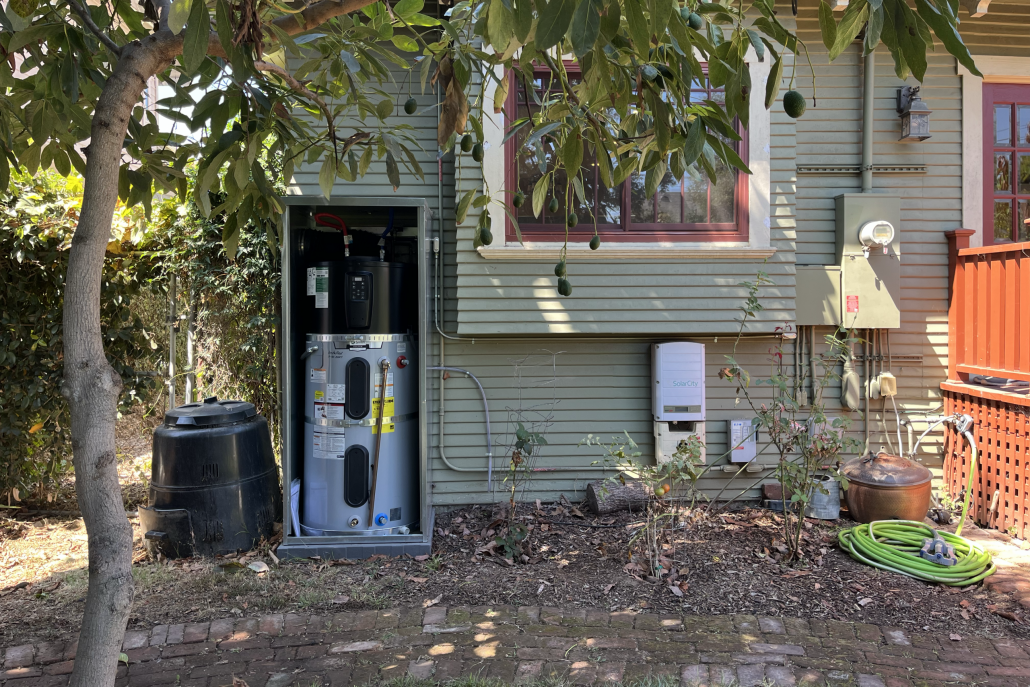
heat pump hot water heater Exposition Park
WWNA Phase 1 Sam Sandoval

news story California Communities Are Impacted – featured
news story Heat legislation – featured
What Defines a Plastic-Burdened Community_—Part II Featured Image

Innovation Opportunities for a Resilient L.A. – featured
Water Tank Grant Laird Jr
2025 Team 4×3
heat pump hot water heater Exposition Park
WWNA Phase 1 Sam Sandoval
news story California Communities Are Impacted – featured
news story Heat legislation – featured
What Defines a Plastic-Burdened Community_—Part II Featured Image
Innovation Opportunities for a Resilient L.A. – featured